


New article
Recently updated
Accessing Risk Manager

Audience: All Risk Users
Select EQMS Risk Manager from the module selector dropdown. You should be greeted with the Risks list, similar to below:
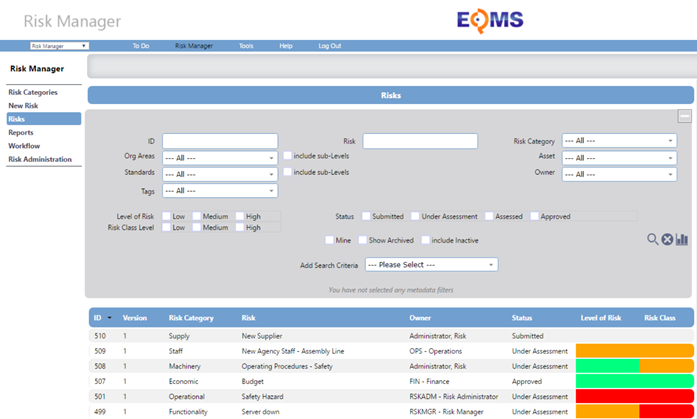
As a Risk Administrator, The Risk Manager application will be presented to you similar to above.
The application screen forms have three main zones. The main (and largest) zone displays lists of records and the details of newly created or selected existing records. To the left of the main zone is a vertical list of Menu options each of which is an entry point into the application. Some of these Menu options reveal sets of selectable tabs across the top of the main area, which in turn reveal additional functionality within the application.
When the main zone lists records, then above the list is an area labelled “Filters”. The list can be filtered and shortened by setting filter criteria in the Filters area and then applying the filter by selecting the List icon. Filter criteria can be cleared by selecting the Clear Filters icon.
Lists are divided into pages with 10 records per page. To step through the list, page by page, or go to a specific page, use the paging icons at the foot of each page.
Lists Filtering
Most list screen forms have two areas. The upper area is a filters area which enables the list in the lower, paged, area to be shortened to aid the location of items.
The Filters area can contain
- Labelled fields into which character strings are entered or selected from drop lists. During the subsequent search (or filtering) a match is looked for between the character string and the contents of the relevant field in item records.
- Check boxes. These can be for the following:
- Selecting which of Levels of Risk – from Low, Medium or High are to be included in the filtering
- Selecting whether sublevels of Organisation Areas and Standards are to be included in the filtering
- Selecting which values of Status are to be included in the filtering.
- Selecting which of Include Inactive, Mine and Archived are to be included in the filtering
- During the subsequent search (or filtering) a match is looked for between the checkboxes and item records which include a match for these Yes/No settings.
The Filters area can be cleared of all settings by selecting the clear icon.
On selecting the search (or filter) icon the list below the filters area is populated with records where ALL the filter settings are true.
Risk Assessment
- Risk Manager offers an indication of the level of an identified Risk by RAG colour codes High, Medium, and Low.
- Risk is calculated using the standard formula of Likelihood (or probability) (L) times Impact (I).
- This requires the preparatory definition and weighting of various Likelihoods and Impacts, and the preparatory specification of the maximum computed limits for the Low or Medium levels of computed Risk. The Risk assessor will be asked to select appropriate Likelihoods and Impacts from their description rather than by their weighting.
- Some clients use an extended formula using a further, weighted Detectability factor (D). As for the other two factors, preparatory definition is required - of Detectabilities and their weightings, together with maximum computed limits for the Low or Medium levels of computed Risk.
- The (L * I) result for a Risk is presented in a field or column Risk Class, and the (L*I*D) result (if used) is presented in a field or column Risk Level. No value will be shown until the required factors have been selected.
