


New article
Recently updated
Creating a Desktop Shortcut for the System

Who is this article for?Users who want to create a shortcut for their system.
No elevated access or permissions are required.
To make accessing the system easier, you may want to create a desktop shortcut on your computer. This guide will run through the basic process of creating one via right-click on the desktop.
1. Creating a Shortcut
To create a shortcut:
- Right-click a blank area of the screen.
- Hover over New.
- Select Shortcut.

- Enter the link to your system landing page.
This should have been provided by your system administrator.
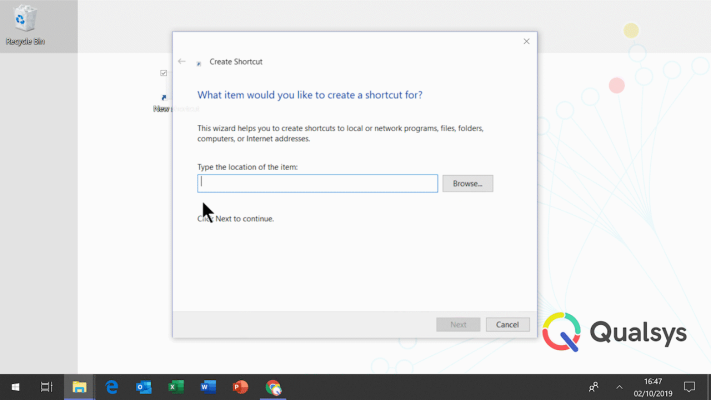
- Click Next.
- Enter a name for the shortcut.
For example: EQMS.
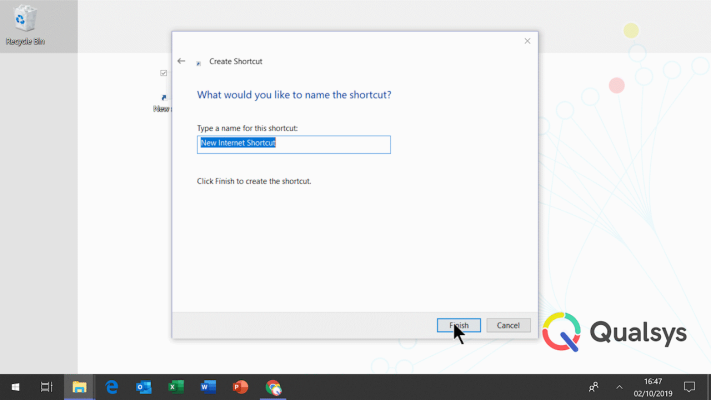
- Click Finish.
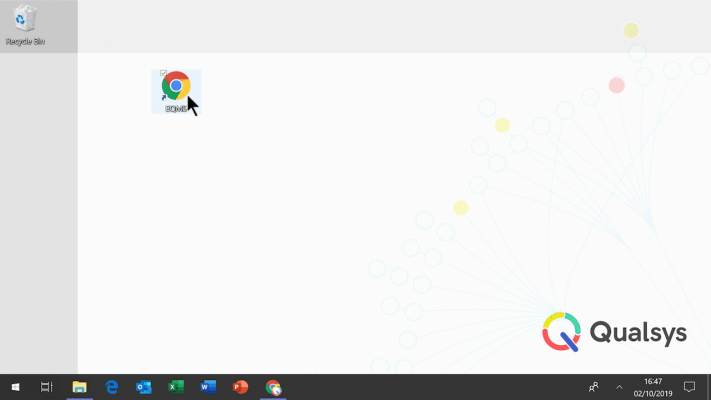
Your shortcut is now created and can be selected to open EQMS in a new browser window.
2. Customising a Shortcut
For ease of visibility and to add an extra bit of flare, you can customise the shortcut icon.
You can download them from these links: Dark EQMS Icon, Light EQMS Icon.
To change the shortcut icon:
- Right-click the desktop shortcut.
- Select Properties.
- Click Change icon....
- Locate the icon file via file explorer.
- Click Open.
You will be returned to the previous window. - Click OK.
- Click Apply.

Your desktop shortcut is now customised!